
OpenEye and Alarm.com integration planning connects supported access and intrusion events with the video that authorized staff need to review.

Request a commercial security assessment
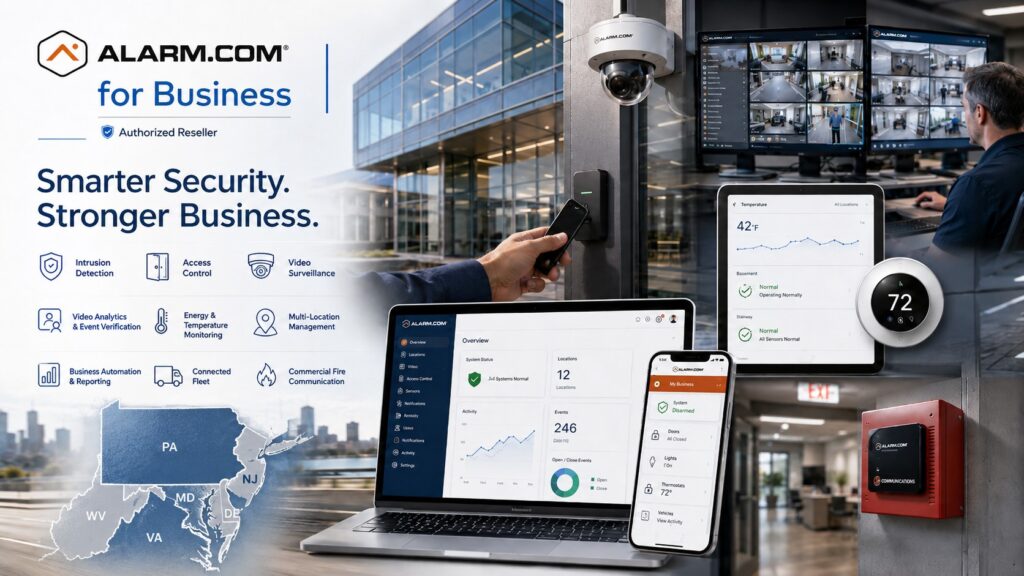
Explore Alarm.com for Business Security Systems for the wider platform, then use this guide to define the requirements for this part of your project.
Choose the event-review task first
Start with an event that staff currently find difficult to investigate. It might be an after-hours entrance, a denied credential or an intrusion event at a particular area. Identify the record that starts the review, the camera that should provide context and the person responsible for reviewing it. That gives the integration a concrete purpose.
OpenEye’s Alarm.com integration overview describes cloud-to-cloud connections that associate supported access and intrusion events with OpenEye video.
It describes event search, alerts and links from Alarm.com to corresponding video in OpenEye clients.
Confirm the required accounts, services and supported functions for the proposed installation.
Distinguish integration from camera migration
Connecting event records with video is a different project from replacing cameras or moving them to another recording platform. Establish which system will continue to record, where users will review footage and which provider supports each part. The scope should explain what changes and what remains in place.
If the question is whether existing cameras can work in a different video architecture, use existing camera integration and upgrades.
For a wider camera project, review Alarm.com commercial video surveillance.
Keep those equipment decisions separate from the event mapping described here.
Inventory accounts, recorders and event devices
List the Alarm.com locations and devices involved, the OpenEye system and the people who control the accounts. Confirm the actual installed configuration with the authorized customer and providers. A business may have different administrators or service agreements for access, intrusion and video.
Ask the providers to identify required service features, permissions and recurring charges. Record any software or equipment work needed before the integration can proceed. Resolve ownership and authorized access through the customer; the existence of a working camera or panel does not establish permission to change its account.
Map each event to a useful camera view
Use a consistent list of building, door, zone and camera names. For every selected event source, identify the view that helps explain it. A lobby overview may show general movement but miss the detail at a side entrance. Review the image with the relevant door or area in normal use.
Some investigations need more than one view. Record the expected sequence and make it practical for a reviewer to follow. Keep mappings current when a camera moves or an entrance changes name. An integration can connect records correctly while still pointing staff toward an unhelpful view.
Align time, recording and permissions
Check timestamps across the systems before assessing an event-to-video link. Review the recording available around the event, including enough context to understand the activity. Establish how long the business needs the relevant records and footage, then confirm what the proposed services and storage arrangements provide.
Test with the account roles staff will actually use. An administrator’s successful demonstration does not prove that a local supervisor can perform the same task. Confirm which users may review, export or share footage and who approves changes. Follow the organization’s policies for handling records and giving others access.
Define alerts separately from event search
Search helps staff investigate an event after it occurs. An alert is intended to bring an event to someone’s attention. Decide which workflow is needed for each task. Avoid sending every routine door event to a manager who cannot act on it.
For selected alerts, name the recipient, operating hours and expected follow-up.
Review the difference between a notification to a business user and a contracted monitoring response.
Use commercial video alerts and verification to plan that distinction, and record the agreed responsibilities in the service scope.
Run an end-to-end acceptance check
Choose representative events with the authorized property team and providers. Coordinate any alarm-related testing with the responsible monitoring service. The acceptance exercise should demonstrate the user’s complete task, not merely show that two accounts report a successful connection.
- Generate an agreed test event through the approved procedure.
- Find the event using the intended user’s account.
- Open the associated view and confirm the correct location.
- Review the recorded time and relevant context.
- Demonstrate the permitted export or sharing task if included.
- Record the supported behavior when a linked service is unavailable.
Document missing views, permissions problems and any event types outside the supported scope. Correct the relevant mapping or configuration and retest. Keep a record of accepted limitations so later users do not assume that every device or event has the same integration.
Plan support across both platforms
Identify the first service contact and how that provider coordinates with the other platform when needed. A failed review may involve an event source, account permission, recording issue or connection between services. Staff should know what information to provide: location, approximate time, event type and the task that did not work.
Keep the device-to-camera mapping and account responsibilities with the handover records.
Review them after renovations, camera replacements or changes in service.
For several sites, use multi-location management to organize responsibilities without losing each property’s local context.
Compare an integration proposal
Ask the proposal to identify included locations, event sources, camera mappings, account work, licenses, testing and user training. Separate equipment replacement from configuration work. Make recurring services and exclusions visible. A description that says only “integrate the systems” leaves too much uncertainty about the delivered result.
Provide a few real review questions during scoping, such as finding the video associated with an authorized after-hours entrance. Keep examples free of unnecessary personal information. A clear task helps both the provider and the customer determine whether the completed workflow is useful.
OpenEye integration questions
Does integration put every feature into one identical interface?
Do not assume it does. Confirm where each task takes place and whether the workflow opens another client. Demonstrate the process with the devices and user roles the customer will use.
Does it guarantee footage for every alarm?
No. Useful footage depends on recording, coverage, mapping, permissions and service availability. Test the agreed tasks and document their limits.
Can several locations share a standard?
Yes, planning can use common names and review procedures while preserving local differences. Confirm supported account arrangements with the providers and test each site’s critical mappings.
Discuss your project with NERSA
Bring your existing equipment details, operating requirements and the questions your team needs to resolve.
Request a commercial security assessment or call 1-888-344-3846 to discuss the scope.
Compliance, Codes & Project Standards
NERSA plans commercial and industrial security work with applicable code, documentation, inspection and authority-having-jurisdiction requirements in mind. Requirements vary by system, property and jurisdiction. These resources support project planning; they do not establish legal compliance, certification or AHJ approval.
Related guidance: Regulatory compliance & inspection readiness · NERSA project standards · Documentation, testing & inspection readiness